- Step 1
Open Trade history and pick an account
Open Trade history from the menu. Every account you have — challenge, funded or closed — has a card with its net profit, win rate, number of trades and a small balance line. Use the search box or the All / Active / Funded / Closed tabs to find one, then press View report.
The same report is in the installed web app and in the Telegram Mini App, so you can check it on your phone. A challenge page in My challenges shows only the latest few trades; the full list is here.
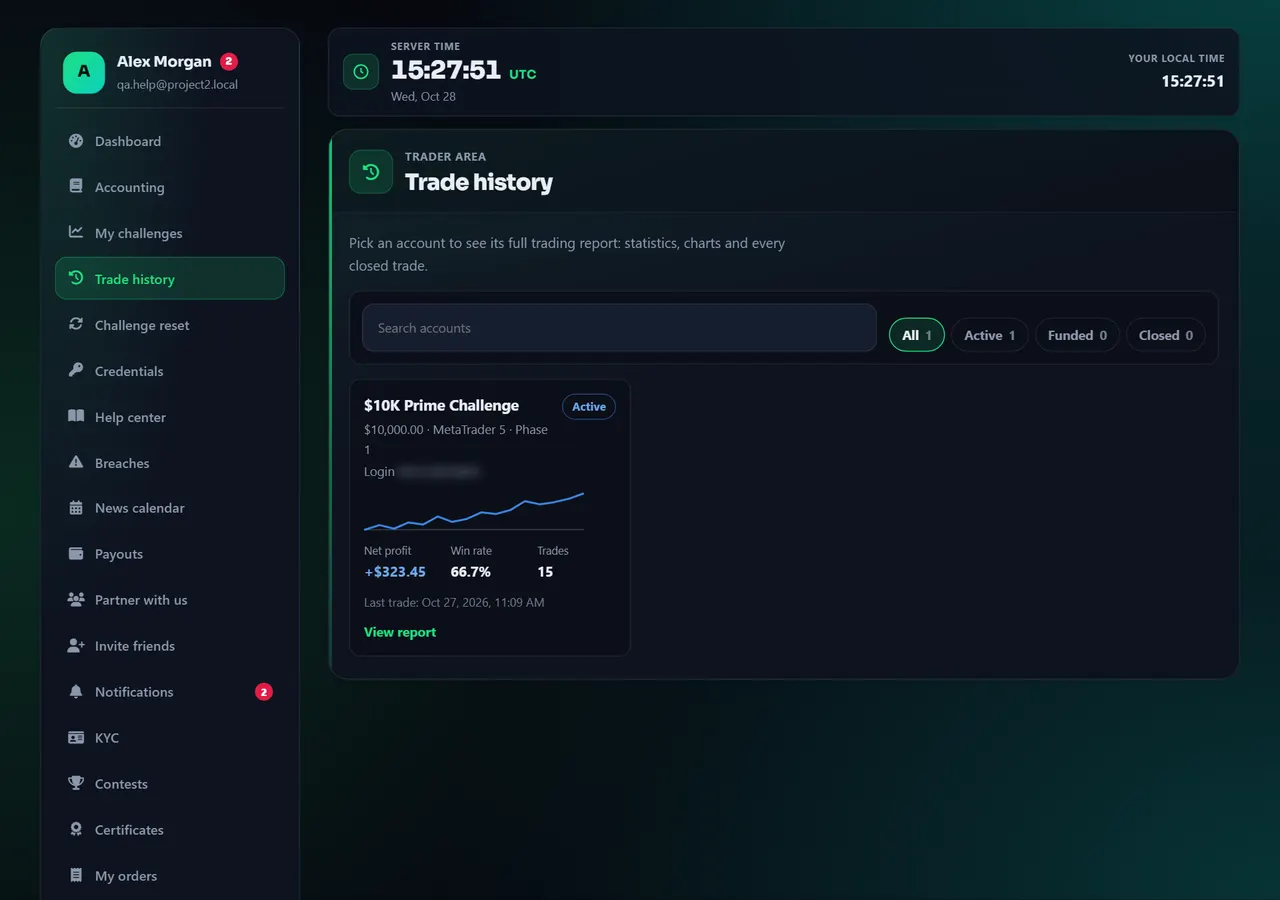
- 1View report
Annotated screen - Step 2
Filters, key numbers and charts
At the top choose the Phase (the current one, an earlier phase, the funded stage or all of them), the Period, a Symbol and the Direction (buy, sell or both). Every number and chart follows these filters.
Figures has two views. MetaTrader result is each trade after commission and swap — the same numbers as your terminal. Challenge credit is what your challenge actually counted; profit held back by a yellow flag or the news rule is left out (see News calendar and flags).
The cards show net profit, win rate, profit factor, average per trade, the largest drawdown and the number of trades and days traded; the small ? next to a label explains it. Below them: the balance curve with your profit target and maximum-loss lines, the drawdown chart, buy versus sell, a calendar of daily results, a monthly summary and detailed statistics (streaks, largest win and loss, average holding time).
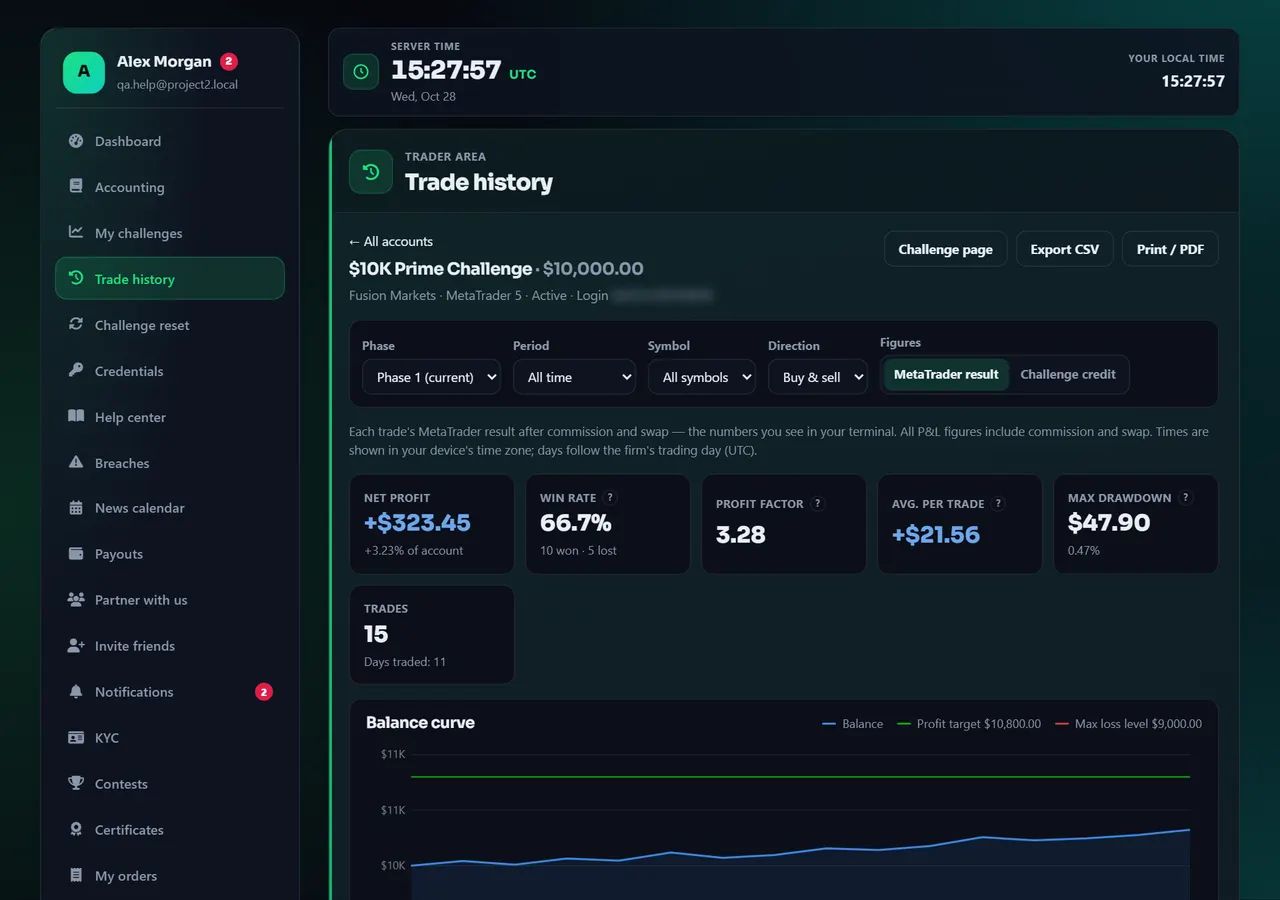
- 1Filters
- 2Figures
Annotated screen - Step 3
Every trade, CSV export and PDF
Lower on the page, Open positions lists trades that are still running, and Trade history lists every closed trade: ticket, symbol, buy or sell, lots, open and close time and price, stop loss, take profit, duration, commission, swap and profit. Click a column header to sort.
Times are shown in your device's time zone; a trading day always follows the firm's clock shown at the top of the panel. A trade closed in several parts counts as one trade.
Export CSV downloads the filtered list for a spreadsheet; Print / PDF prints the report or saves it as a PDF. Challenge page takes you back to the account in My challenges. If a number looks wrong, open a ticket with the ticket number of the trade.
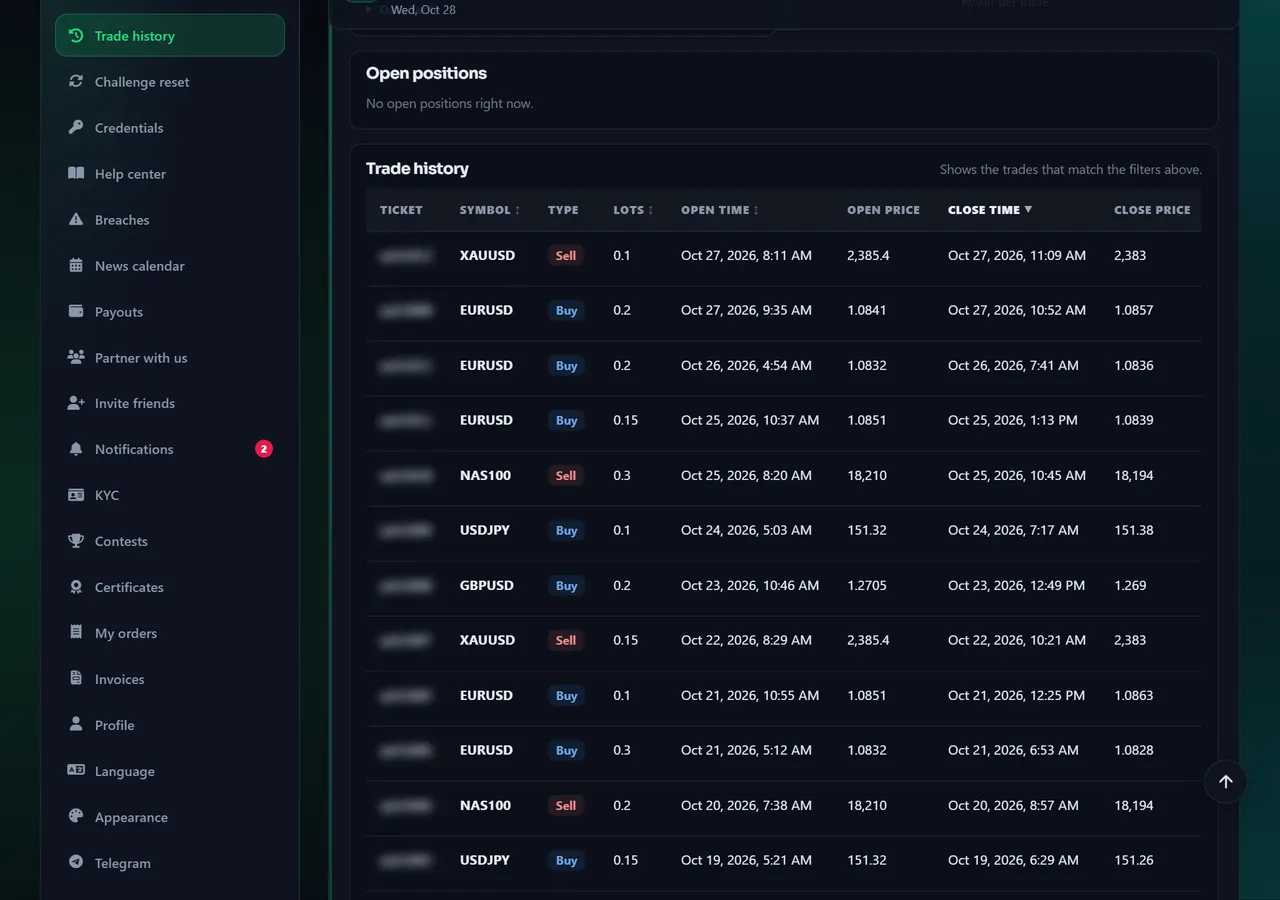
- 1Trade history
Annotated screen
Help center
Trade history: a full report for each account
Pick an account and see MetaTrader-style statistics, a balance curve, a trading calendar and every closed trade. Filter by phase, period, symbol or direction, then export to CSV or print as PDF.


